NJ-GeoWeb Radius Searches of Any Given Location
Using the Department’s NJ-GeoWeb application,
an environmental mapping tool, you can detect sites or other mapped
environmental information within a radius (buffer) of your point
of interest. Please follow the instructions below.
To access NJ-GeoWeb:
On the Internet, go to https://www.nj.gov/dep/gis/geowebsplash.htm. 
Launch NJ-GeoWeb by clicking on the “Launch NJ-GeoWeb”
link on the menu bar on the left of the screen.
Then, launch the Geo-Web Profile.
Identify a point of interest:
There are several ways to search for and identify a point of interest,
whether that is a contaminated site in your community, your home,
or a property you are looking to purchase.
- Searches can be accessed by clicking on the "Search"
tab above the map view. You can find a location of interest by
street address, county, municipality, place, ZIP code, parcels
by block and lot, etc. (If you search by address, please exclude
avenue, drive, street, etc.)
- Users can also search for contaminated sites or facilities by
program interest name or site name, and by preferred ID or site
ID. This feature is located under “All searches” tab
in the Search window.
- After you have searched for your point of interest, the map
should zoom in and a “1” tag should appear, marking
your point of interest.
Identify Known Contaminated sites within a buffer:
- Once you have identified a point of interest, click on “Advanced
Tools” button located above the Layer Manager window. The
advanced tools menu should appear in a box.
- Click on “Buffer Selection.”
- The first drop down menu should be selected as, “Buffer
a point on a map.”
- From the Target Layer drop down menu, please select Known Contaminated
Sites List.
- Then, identify the buffer radius. (NJDEP recommends approximately
200-400 feet.)
- At the bottom of the Buffer Selection Window, please click on
“Point on Map”.
- Next, click on the “1” on the map (your point of
interest).
A window identifying all the known contaminated sites within 200
feet of the point of interest should appear.
- Click on the number (to the left of the check box) to display
site specific information.
Saving your work
- There is a Reports section in the case specific window. To
save the case-specific information, choose your preferred file
type to save the information (CSV,HTML, PDF, XML)
- To save your point of interest, in the “Maps Tool”
menu bar, please click on the chain icon (second from the bottom).
The X and Y coordinates should auto fill; if they don’t,
please click on “Get From Map”. In the Label field,
pick a descriptive name to remember your point of interest (e.g.
My house).
- You can email the map to yourself (or someone else) by entering
in an email address and clicking on “Email to a friend”.
- You may also choose to generate a link.
|
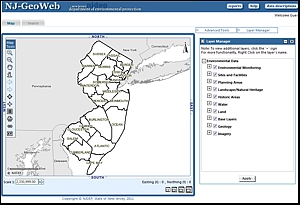 NJ-GeoWeb Main Screen NJ-GeoWeb Main Screen
Alternate Format of This Guidance
Related Links
=
Link will open a new browser window.
|



