 Official Site of The State of New Jersey
NJGMS Getting Started Guide: Print Function
See the How to Log on to New Jersey Grants Management System (NJGMS) webpage for logon instructions.
The print function in NJGMS creates a PDF that can then be downloaded and printed. Single page print requests can be downloaded immediately. All other print requests are processed at the top of every hour.
Step 1: Login and Navigate to NJGMS
- Log into EWEG.
- On the Dashboard, click on the NJGMS link.
Begin text shown in system You have been granted access to the forms below by your Security Administrator
- Administrative
- **LEA Central Contact - REQUIRED
- Consortium Administration
- GMS ACCESS / Select
- Funded Applications
- Non-Funded Data Collections
- NJGMS (2026 ESEA, IDEA, and Perkins)End text shown in system
- Administrative
Step 2: Open Grant Application
- Select the Applications option from the top dashboard menu.

- Select the grant you wish to print and click Open Application.

Step 3: Navigation Panel
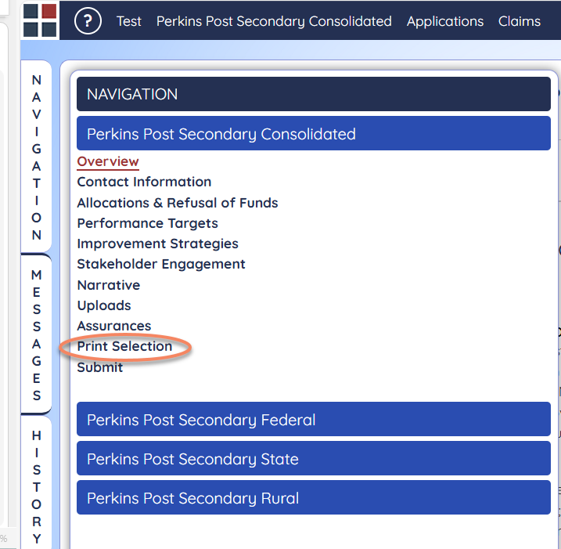
- Open the Navigation Panel.
- Expand the grant you want to print.
- Click on Print Selection.
Step 4: Submit Print Request
Note: Single-page print requests are processed immediately. All other requests are processed at the top of every hour and are not available for immediate download.
To print all pages, click on Select All Pages for Program.
To print only some pages, select the pages by clicking on the check boxes.
Begin text shown in system
Perkins Post Secondary Consolidated
Select All Pages for Program / Deselect All Pages for Program
- ☐ Overview
- ☐ Contact Information
- ☐ Allocations & Refusal of Funds
- ☐ Performance Targets
- ☐ Improvement Strategies
- ☐ Stakeholder Engagement
- ☐ Narrative
- ☐ Uploads
- ☐ Assurances
end text shown in system
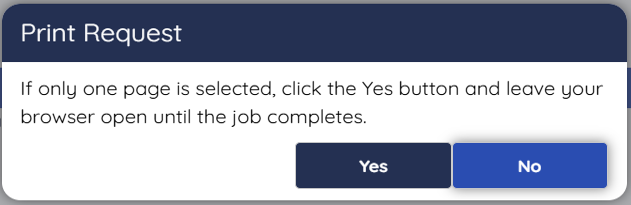
A Print Request pop-up window will appear.
- If you only selected one page to print, click the Yes button. Leave your browser open until the job completes.
- To print more than one page, click the No button.
Printing More than One Page
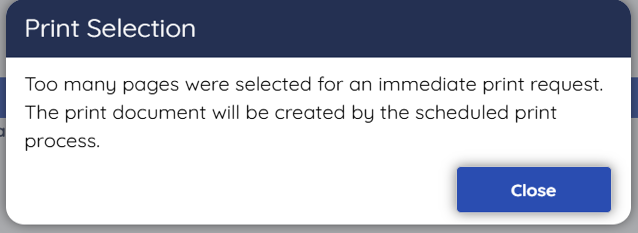
The following message will appear: Too many pages were selected for an immediate print request. The print document will be created by the scheduled print process. Click Close and allow the print request to be processed.
Step 5: Download, Save and Print PDF
One page print requests are available immediately. All other requests are available after the scheduled print run.
- Once completed, your print request will appear in the Completed Requests box at the top of the page.
- Click the link for the print request to open the PDF in a new tab.
- Download the file.
