 Official Site of The State of New Jersey
NJGMS Getting Started Guide: Deleting a Revision
See the How to Log on to New Jersey Grants Management System (NJGMS) webpage for logon instructions.
Step 1: Login and Navigate to NJGMS
- Log into EWEG.
- On the Dashboard, click on the NJGMS link.
Begin text shown in system You have been granted access to the forms below by your Security Administrator
- Administrative
- **LEA Central Contact - REQUIRED
- Consortium Administration
- GMS ACCESS / Select
- Funded Applications
- Non-Funded Data Collections
- NJGMS (2026 ESEA, IDEA, and Perkins)End text shown in system
- Administrative
Step 2: Select the Application
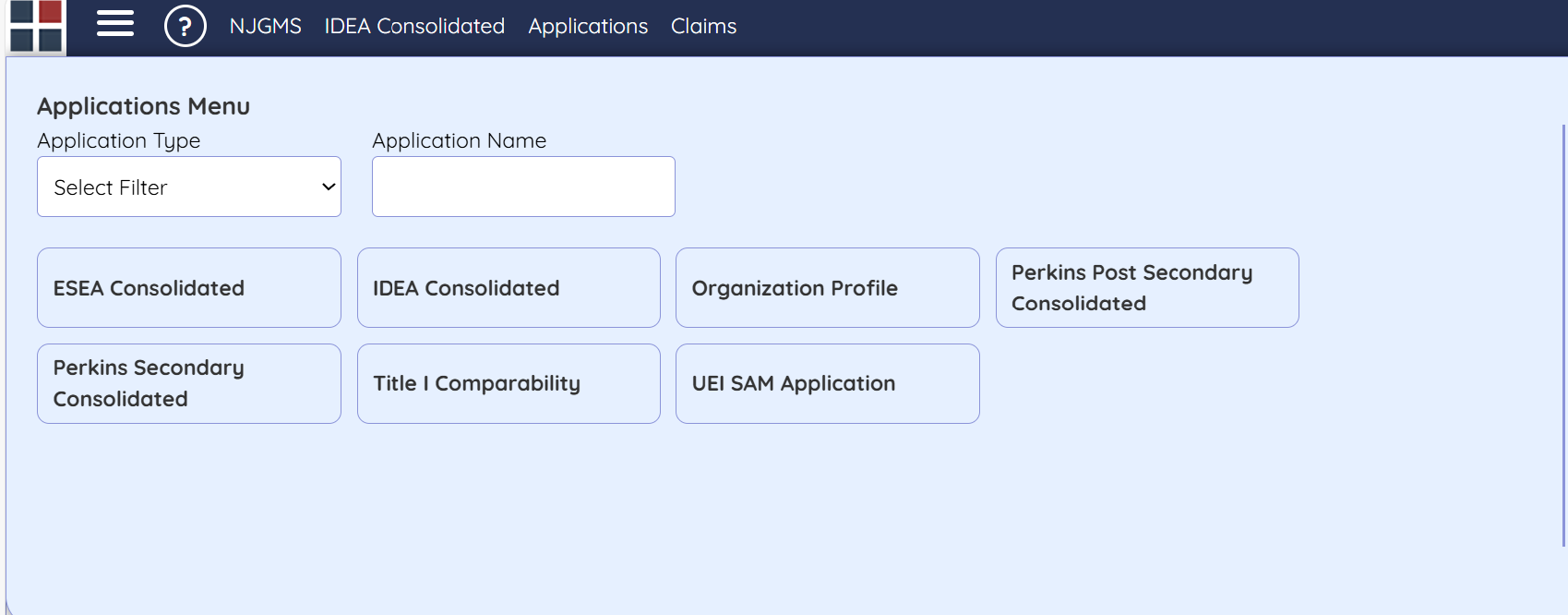
Select the Applications option from the top dashboard menu.

Step 3: Select the Grant
Select the Grant you would like to Delete from the Tiles.
Step 4: Select and Delete the Revision
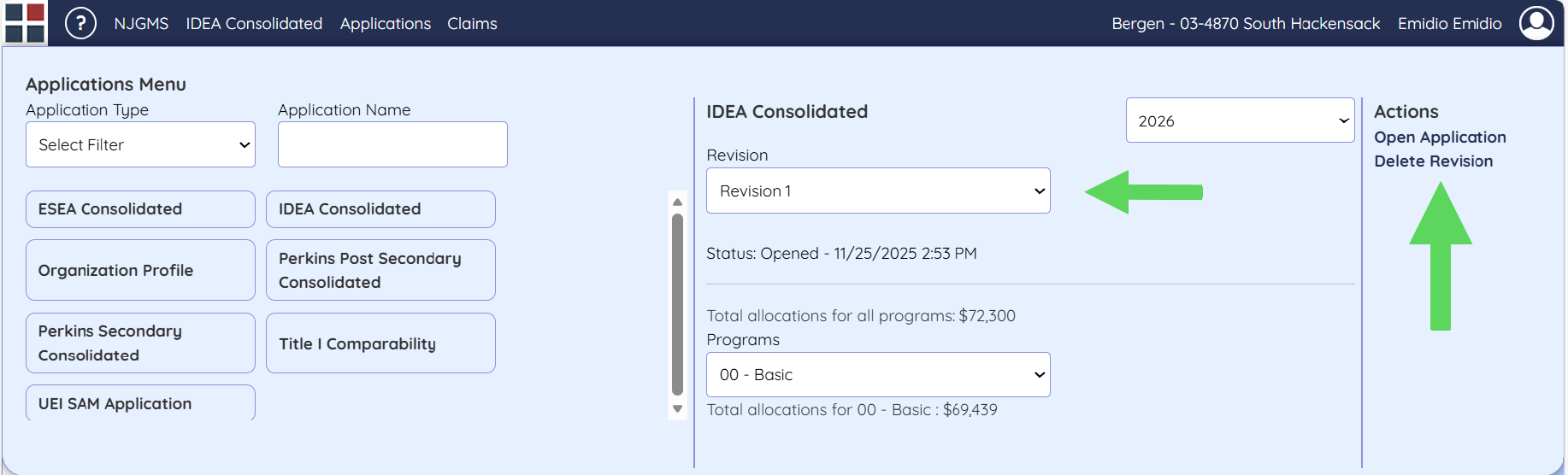
- Select the application revision from the drop-down menu (e.g., Original Application, Revision 1, etc.).
- Under Actions, click the "Delete Revision" link.
Delete Application Support
For assistance to determine if you need to Delete a Revision, assistance in deleting the application, or technical assistance with NJGMS, please contact the EWEG Help Desk.