 Official Site of The State of New Jersey
NJ Wage Hub: Quick Reference Guide
LATEST NEWS AND UPDATES:
April 14, 2026:
-
There's a new MW-562 (dated 2/25). It includes check boxes for "no work week." However, if necessary, the older version, dated 6/23, is also compatible with our system.
-
User guides for contractors and public bodies have been updated! (They're dated March 2026.)
-
You can now remove users. Just email us at njwagehubinfo@dol.nj.gov to let us know who to take off your account.
-
Payrolls submitted to the wrong project can now be moved to the correct project. Just email us at njwagehubinfo@dol.nj.gov to let us know which payroll to move.
-
You can report an assignment error. Your report will be sent to us for review and we'll follow up to fix it.

- Public body users/users who are employed by more than one public body can now toggle between their entities within one user account. Email us at njwagehubinfo@dol.nj.gov if you want to consolidate multiple user accounts into one.
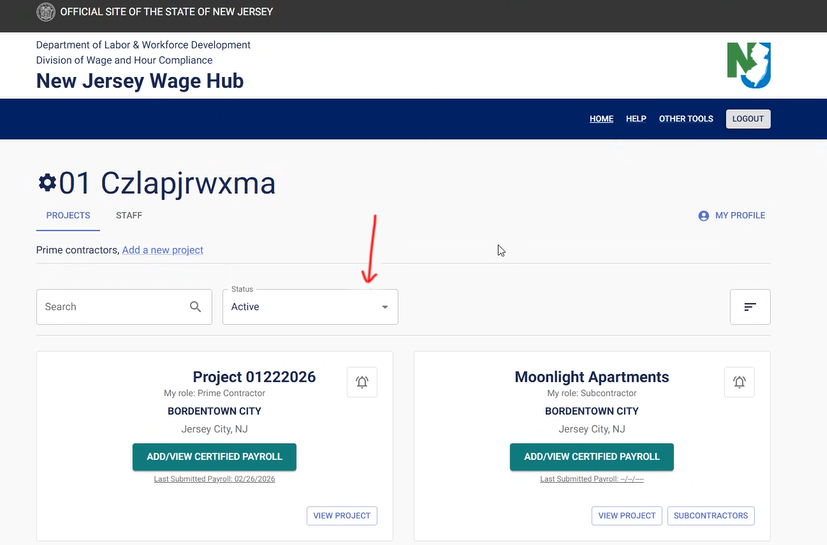
- Public bodies and contractors will only see active projects when they log into their dashboard. To see completed projects, you have to filter projects by status as shown below.
- Only General Contractors can add subcontractors to projects. Subcontractors can no longer add themselves directly to a project, but once added to a project by a GC, they can add their own subcontractors.
- To create a project, a General Contractor needs to upload a contract. The project will not be active without a contract. Also, if a GC wants to edit an existing project, it must also have a contract attached to it in order to stay active. If you try to edit an existing project without an attached contract, you will get an error message letting you know it can't be edited without one.
Have other questions? Email us at njwagehubinfo@dol.nj.gov.
Browser Requirements
New Jersey Wage Hub supports all modern browsers: Chrome, Firefox, Edge, and Safari. To see the latest changes to the NJ Wage Hub, we recommend clearing your cache and returning to the site.
What You Need to Get Started
- 9-digit FEIN
- Contractor registration number
- Contractor reference ID number (a unique 10-digit number that a contractor receives, via email, upon submission of an application for public works contractor registration)
User Guides
Step-by-step instructions for submitting payroll from start to finish.
Important Numbers
Prevailing wage threshold: As of July 1, 2024, $19,375 for work awarded by a municipal governing body.
All other public work (Boards of Education, utility authorities, counties) falls under a threshold amount equal to $2,000.
Payroll Certification for Public Works Projects (MW-562)
Click below for the latest version of the Payroll Certification file as a PDF.
Verifying Submissions to the Wage Hub
We can't manually confirm receipt of individual submissions to the Wage Hub. All successfully submitted certified payrolls will be listed in your dashboard.
Tips for Uploading Files
- CSV Files: Fill out all cells. Don't edit or change the template. Check cells for extra spaces, especially longer text fields. Click here to watch a helpful instructional video about the process.
- Convert all times to HH:MM format.
- Upload both files at the same time. Doing so one at a time will override the first file.
- If using the PDF for submission, make sure to use the most current version. Do not lock the file.